 Search Tips
IPM Resource Groups
IPM allows you to group Resources together into Resource Groups and assign these resource groups to certain documents and activities related to the Job. Once you have created each of your Resource Groups and Resources (see Chapter 7, 11.0 and 12.0), you can begin assigning Resources to each of your Resource Groups.
11.1 To Add a New IPM Resource Group
- In the drop down navigation menu, click on IPM Reference Data > IPM Resource Groups
- Click on New in the top menu to bring up the new Resource Group form:
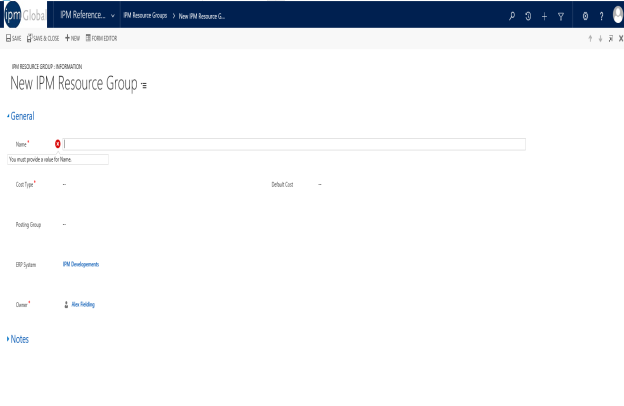
- Enter a Name for the Resource Group
- Enter a Cost Type that the Resource Group will be associated with by clicking
 and selecting from the list
 - If applicable, enter a Default Cost
- If IPM is integrated with your accounting software, you may wish to enter a Posting Group and ERP System for accounting purposes
- Click Save to gain access to other items in the left hand menu
11.1.1 To Add Resources to your Resource Group
- Click on IPM Resources in the drop down menu of the New Resource Group form
To add a new Resource
- Click on Add New IPM Resource to bring up the New Resource form:
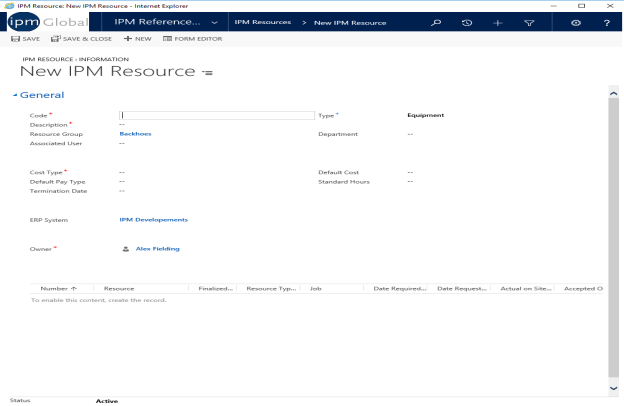
- Enter a unique Code for the Resource
- Select the Type of resource from the drop down menu
- Enter a Description
- The Resource Group has already been filled in for you
- If applicable, enter a Department by clicking on and selecting from the list
- Enter a Cost Type by clicking on and selecting from the list
- If applicable, enter a Default Cost
- Click Save and Close
To add an existing Resource
- Click on Add Existing IPM Resource
- This will bring up the Look Up Records box where you can search for Resources already entered in IPM
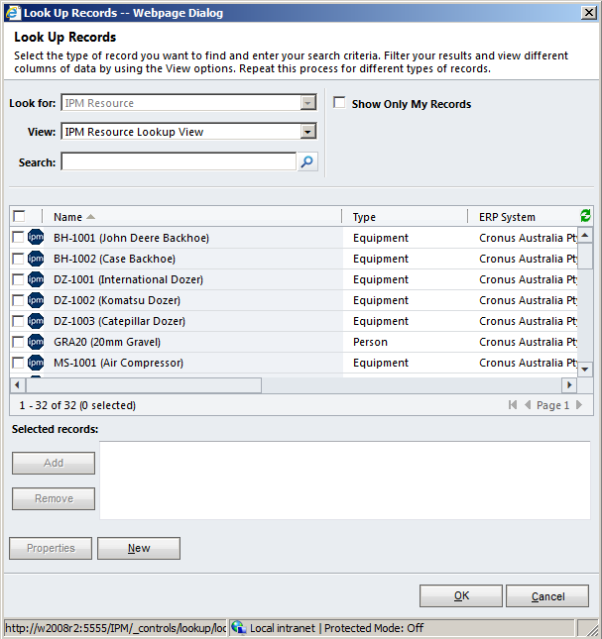
- Select the Resource you wish to add by clicking on the Name, or checking the box next to the name and clicking OK
Once all the required information has been added to your Resource Group, click Save and Close to close the New Resource Group form. The Resource Group will now appear in your Reference Data list of IPM Resource Groups.